Google Business Profile checklist for small business
A step-by-step Google Business Profile checklist for Australian local businesses: set up, verify, fill in the details and avoid mistakes that get you suspended.
By the Omniwink team · 23 October 2026 · 8 min read
Listen to the summary· 2 min
A Google Business Profile is the free listing that shows your business on Google Search and Google Maps [4]. Getting it right comes down to five jobs: create or claim it, verify it, fill in every detail honestly, add real photos, and keep it up to date. This guide is a Google Business Profile checklist you can work through in an afternoon.
You can't pay for a better position. Google says "there's no way to request or pay for a better local ranking on Google" [1]. What you can do is give Google complete, accurate information and avoid the mistakes that get a profile suspended.
What does a Google Business Profile do for a local business?
Google says creating a Business Profile and listing your business is free [4]. Depending on your type of business, customers can find you on Maps and Search, request quotes, book services and appointments, read reviews, and see your updates, offers and posts [4].
Google lists three steps: create (or claim an existing profile), personalise (add hours, photos and other essential information), and grow (share updates, respond to reviews and connect with customers) [4]. Our checklist follows the same order, with the detail Google's own pages give for each step.
How does Google decide who shows first?
Google says local results are mainly based on relevance, distance and prominence [1]:
- Relevance is how well your profile matches what someone is searching for. Google advises providing complete and detailed business information [1].
- Distance is how far each business is from the searcher. If the person doesn't share their location, Google uses what it knows about it [1]. You can't change this one.
- Prominence is how well known your business is. Google says it is based on factors like how many websites link to you and how many reviews you have [1].
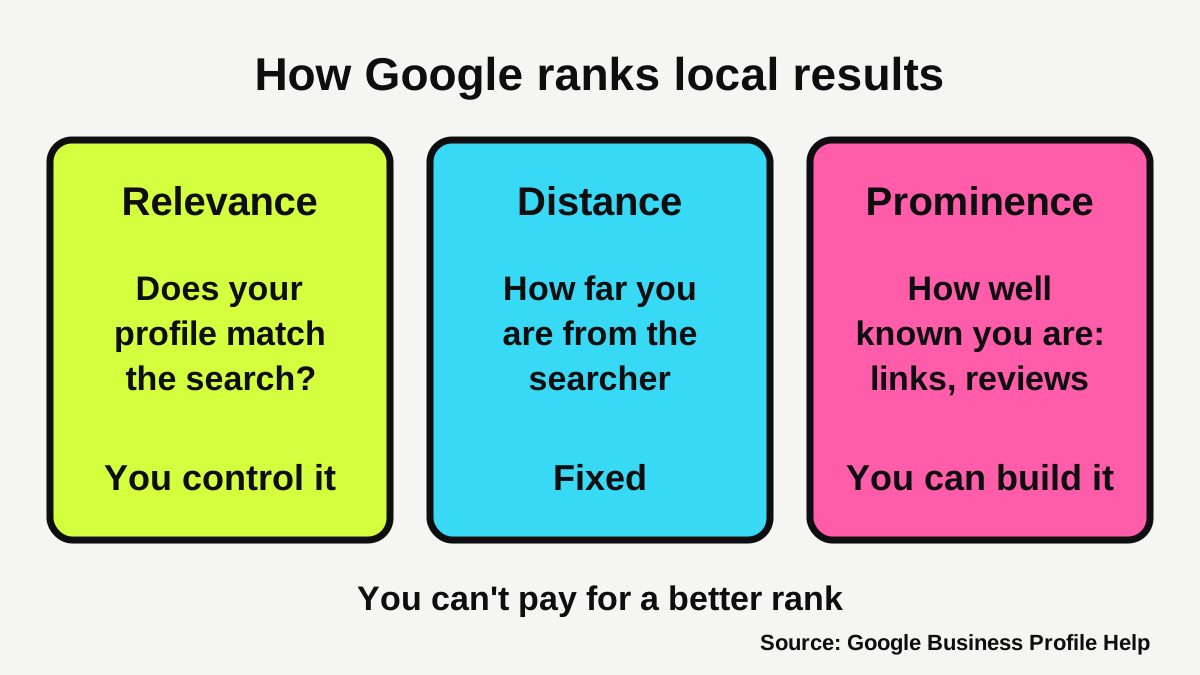
That makes your job clear. Relevance and prominence are where you can act. Distance is fixed, so don't waste energy on it.
How do you create or claim your Business Profile?
Search your business name in Google first. A profile may already exist, for example because someone added your business to Maps. Google's sign-up page lets you either share your details to start a new profile or claim an existing one [4]. Claiming is better than creating a second listing.
Which business details do you need on hand?
Have these ready before you start:
- Your real business name, exactly as it appears on your signage and paperwork.
- Your address, if customers visit you. Google says to create your profile "for your actual, real-world location" and that P.O. boxes and mailboxes at remote locations aren't acceptable [2].
- A phone number you control. Google says the number "must be under the direct control of the business" and must not redirect to other businesses' numbers [2].
- Your website address, which must not redirect people to a different business's pages [2].
What are the name, category and address rules?
This is where most suspensions start, so read this section twice.
What name should you use?
Use your real business name. Google says that including unnecessary information in your business name isn't permitted and can lead to your profile being suspended [2]. That rules out marketing taglines, store codes, ® symbols, hours, phone numbers and URLs [2]. "Smith Plumbing" is fine. "Smith Plumbing, Best Plumber Melbourne, Call 24/7" is not.
Which categories should you choose?
Google says to use as few categories as possible to describe your overall core business [2]. A category should complete the sentence "This business IS a...", and not describe things the business has or does on the side [2]. A plumber picks plumber, not "tap washers". Choose the most accurate main category first and add a second only if it really describes what you are.
Do you show your address?
It depends on how you work:
| Your business | What to do | Source |
|---|---|---|
| Shopfront, clinic, salon, cafe | Show your address and keep "permanent fixed signage of their business name at the address" | [2] |
| You travel to customers (tradie, mobile cleaner, mobile detailer) | Create a service-area profile and hide your address from customers | [2] |
| Virtual office or shared mailbox | Not eligible for a profile, unless the office is staffed during business hours (for a service-area business) | [2] |
Google allows a business with no storefront that travels to customers one service-area profile [2]. If you run from home, that means customers see your service area and not your front door. Our guide to what pages a tradie website needs covers how to show where you work on your site as well, which should match your profile.
How do you verify your business?
Verification is how Google knows you're authorised to represent the business, and Google lists it as one of its tips for a better local ranking [1]. Photos and videos only show on your profile once the business is verified [6].
One option is video verification. Google says your video must be an unedited, unique and complete recording with no breaks, at least 30 seconds long, captured live, and recorded and uploaded from a mobile device through your Business Profile [3]. Don't show bank, tax or ID numbers, private information or other people's faces [3].
What you need to show depends on how you work [3]:
| Business type | Show where you operate | Show your business exists | Show you manage it |
|---|---|---|---|
| Storefront or hybrid | Street signs, building numbers, nearby businesses | Storefront, showroom or signage with your name on a permanent fixture | Areas only staff can reach, such as a cash register, kitchen or point-of-sale system |
| Service-area | Street signs or landmarks near your business address | Tools, equipment, products, business cards or branded clothes | Doing a job or unlocking a branded van, or an invoice or utility bill matching your profile name |
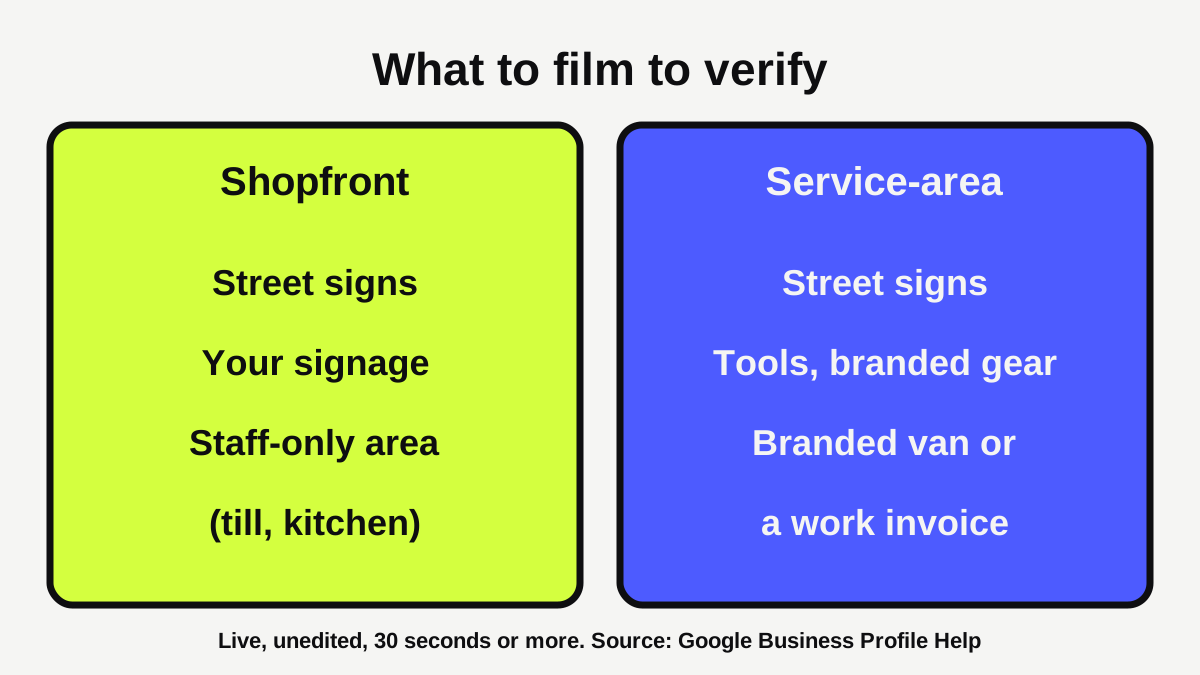
Plan your walk-through before you press record, because the video can't have breaks or edits [3].
What should you fill in on your profile?
Google's advice on ranking is to keep your info up to date and complete, including your address, hours, category and attributes such as parking or Wi-Fi [1]. Work through these:
Are your hours right?
Add your regular customer-facing hours [2]. In your profile, go to Edit profile, then Hours, and tick each day you're open [5]. If you close for a break, create two entries for the same day, for example 9am to 2pm and then 5pm to 10pm [5].
Use special hours for holidays and short closures. Google says they apply when you're closed six days in a row or fewer [5]. Update them before Christmas, Easter and any public holiday you'll be shut, because wrong hours send customers to a locked door. Some businesses, such as schools and hotels, shouldn't list hours at all [2].
Which photos should you add?
Photos help customers decide, and Google recommends adding them [1]. Google's photo guidance says [6]:
- Use JPG or PNG files between 10 KB and 5 MB.
- Aim for 720 by 720 pixels, with a minimum of 250 by 250.
- Keep photos in focus and well lit, with no significant alterations or excessive filters or AI.
- Add a spread of photo types, with at least three each of exterior, interior, product, team and "at work" photos where they apply.
For a tradie, that means real photos of finished jobs and your team. For a salon or cafe, it means the room, the counter and the product. Skip stock photos.
What should you do after you set it up?
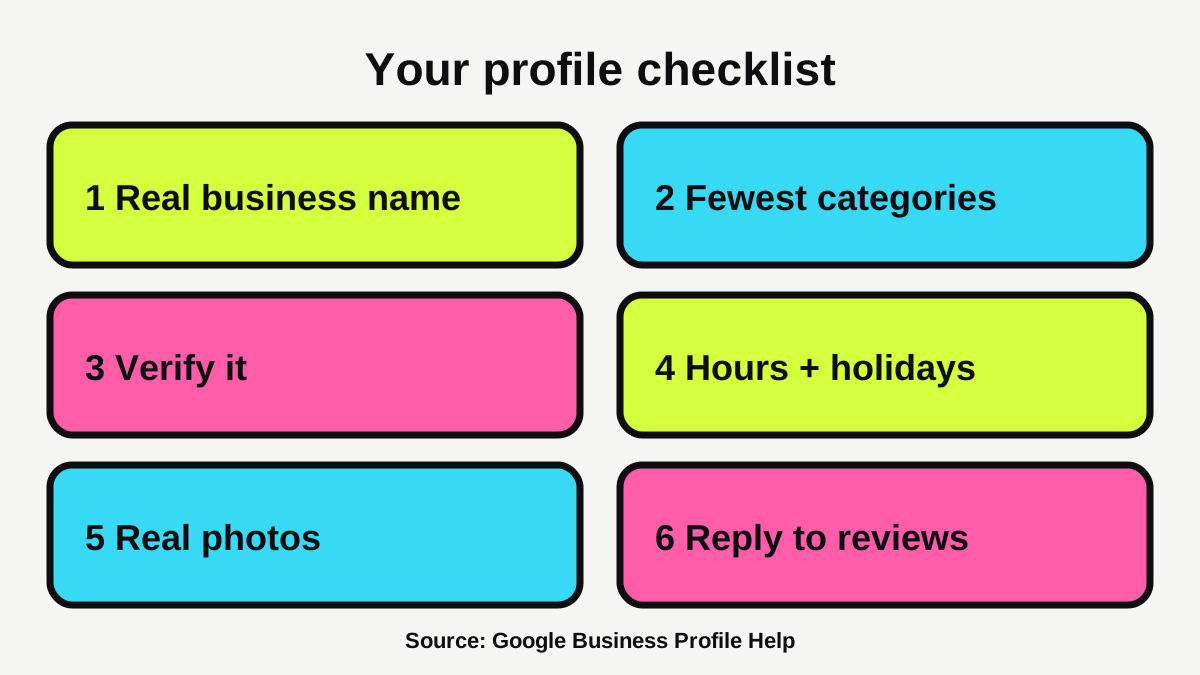
A profile isn't finished once it is live. Google says responding to reviews shows you value feedback, and that more reviews and positive ratings can help your local ranking [1]. Our guide to how to get more Google reviews covers the rules on asking, and how to respond to a bad Google review helps with the tough ones. You can also use the free Google review link generator to get a link and QR code for customers.
Then put a reminder in your calendar to check your profile every month: hours, phone number, new photos, and any new reviews waiting for a reply.
Your profile and your website should agree. If you want to see how both look to a customer, run the free Omniwink scan. If you'd like someone to set up and look after your profile and site, our growth service covers local search.
What are the common mistakes?
- Stuffing the name. Adding a suburb or "best plumber" to the name risks suspension [2].
- Choosing too many categories. Google wants as few as possible [2].
- Showing a home address you want to keep private. Service-area businesses should hide it [2].
- Using a virtual office or P.O. box as your address. Google doesn't accept these [2].
- Forgetting holiday hours. Update special hours ahead of each closure [5].
- Heavily filtered photos. Google asks for no significant alterations or excessive filters [6].
- Using a number or link that isn't yours. Phone numbers and URLs must belong to your business [2].
What to do next
- Search your business name and see whether a profile already exists.
- Claim or create it, using your real name and address (or service area).
- Choose one main category, and add a second only if needed.
- Verify it, using the video steps above if that is your option.
- Add hours and holiday hours, then at least a dozen real photos.
- Ask for reviews, and reply to the ones you get.
- Set a monthly reminder to check it.
If you work in a trade, our pages for plumbers, electricians and cleaners show how local customers find businesses like yours.
How visible is your business?
Get a free visibility score, three fixes and three posts in about a minute.
Sources
- [1]Tips to improve your local ranking on Google · Google Business Profile Help · accessed 23 October 2026
- [2]Guidelines for representing your business on Google · Google Business Profile Help · accessed 23 October 2026
- [3]Verify your business with a video · Google Business Profile Help · accessed 23 October 2026
- [4]Get Listed on Google · Google Business Profile · accessed 23 October 2026
- [5]Edit your business hours · Google Business Profile Help · accessed 23 October 2026
- [6]Tips for business-specific photos on your Business Profile · Google Business Profile Help · accessed 23 October 2026